Share a board or page
Sharing in SpeakAnyWay comes in three flavors, depending on who needs to use it and how often.
| If you want to… | Use this |
|---|---|
| Give grandparents, school, or respite caregivers one stable link to the same board library | MySpeak page |
| Send a single specific board to one person, one time | Share a board link |
| Stick a sign on the iPad case or a backpack tag so anyone can scan and start | QR code |
You can mix and match. A communicator can have a MySpeak page and you can share an individual board link with one teacher.
A. Share a MySpeak page
A MySpeak page is the one-stable-link approach. Anyone with the link can use any of the boards on the page, on any device, without an account.
- From the communicator's detail page, find MySpeak page.
- If you don't have one yet, click Create MySpeak page. See Start with MySpeak.
- Once it exists, click Copy link. The URL looks like
app.speakanyway.com/my/s-j5nz86— a short, secure code SpeakAnyWay picks for you. You don't choose it (so no one can guess it) and it never includes the child's name. There's also a matching lookup code shown likeJ5N-Z86for finding the page by hand if scanning isn't an option. - Paste the link into a text, email, school portal, or family chat.
The link is permanent — once it's created, it stays put. Anyone who saves it once gets the same page forever, with whatever boards you have on it today.
Tip: A MySpeak page can have multiple boards. As you add boards, the link stays the same — the new boards just show up for everyone who already has it.
B. Share a single board link
For sending one board to one person — e.g., "here's the lunch board for today, can you use it at the cafeteria?"
A board has to be published before its link works for anyone else. Until then, only you can open it, and there's no share link or QR code to copy.
- Open the board.
- If it isn't published yet, you'll see This board isn't shared yet below the board. Click Publish this board. That opens the board's Settings; scroll down to Sharing & Publishing.
- Turn on Publish this board, then click Save. If the board has buttons that open other pages, SpeakAnyWay asks before publishing those pages too.
- Go back to the board. In the Share this board card below it, click Copy Link.
- Paste wherever you want to send it.
Anyone with the link can open and use the board, but they can't change it. A published board won't be listed in the public board library — people only find it through the link you send. If they want their own copy to customize, they can clone it from the share view.
C. Generate a QR code
For physical-world scenarios: a sign on the iPad, a tag on a backpack, a label on a communication binder.
For a single board:
- Publish the board first (steps 1–3 in section B above). An unpublished board has no QR code, because its link wouldn't open for anyone else.
- Open the board. The QR code is in the Share this board card below it.
- Click Copy QR Image, then paste it into a document or label maker.
- Print it. Stick it somewhere useful.
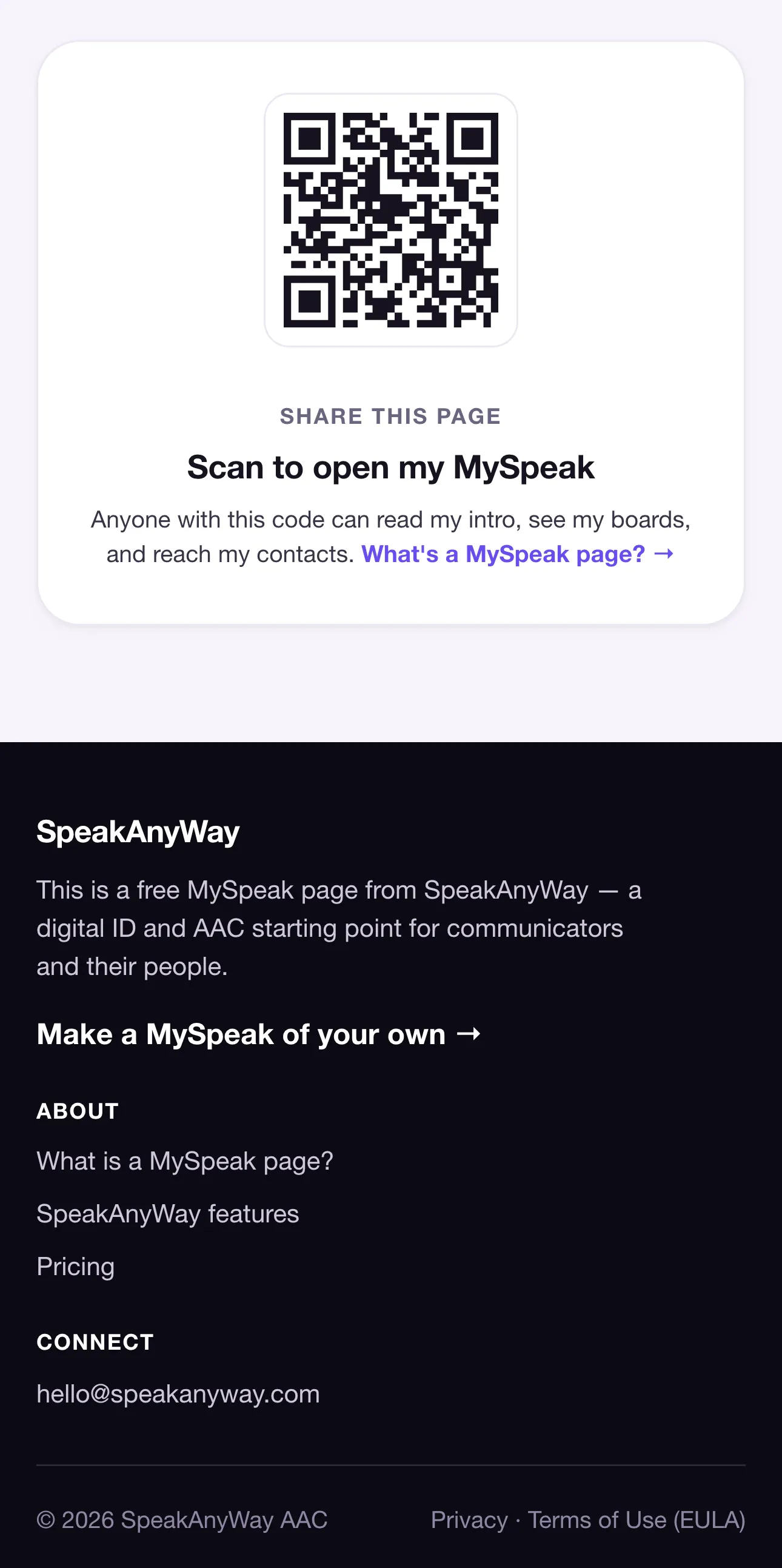
For a MySpeak page: there's no publish step. Open the communicator's MySpeak page tab and go to Print & share for its QR tags.
Most phone cameras now scan QR codes by default — point the camera, tap the notification, the board opens in their browser.
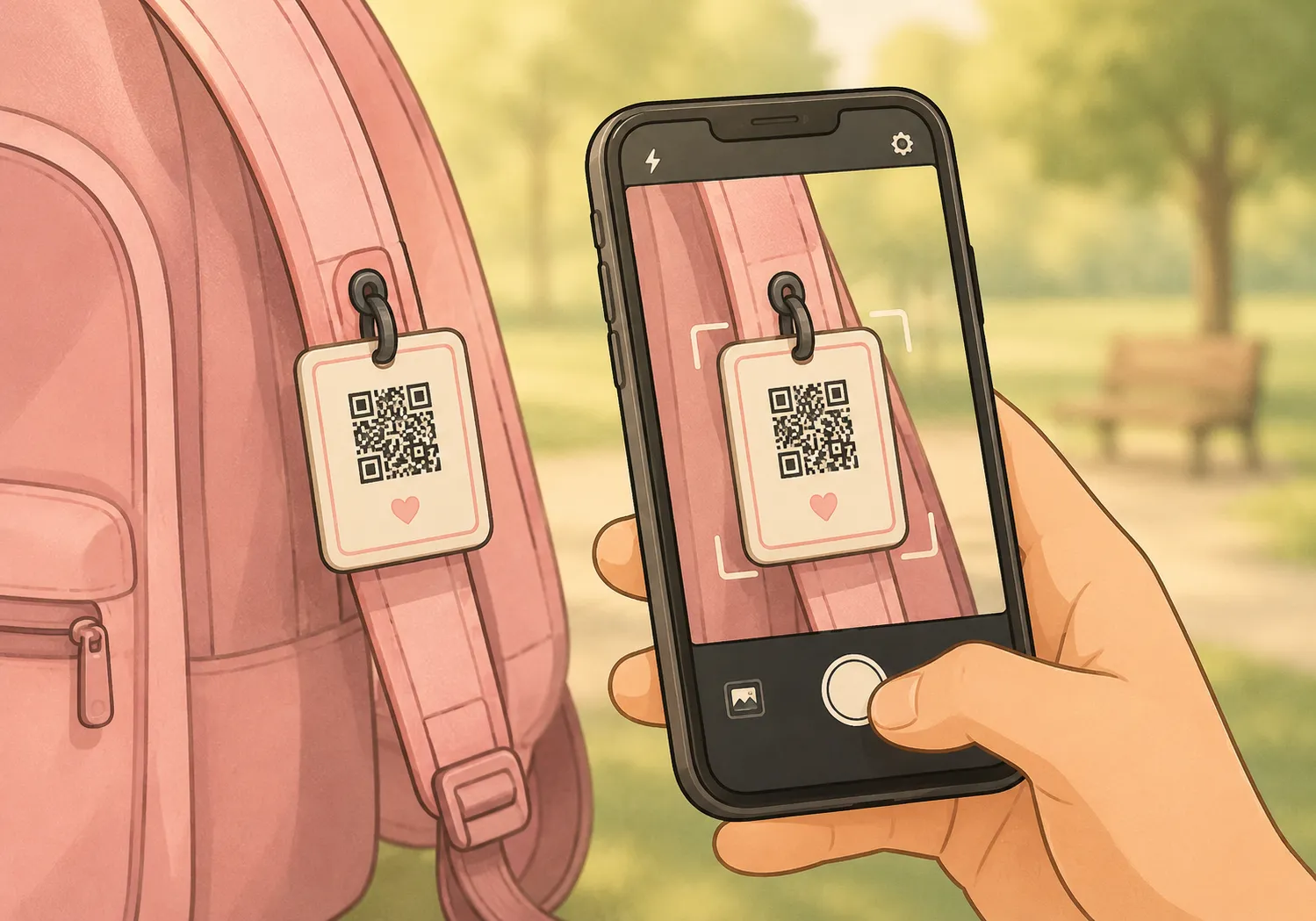
Tip: Print the QR on something durable. We've got a myspeak-device-tag template in the resources folder you can use — see the MySpeak page in your dashboard for the latest version.
Real-world scenarios
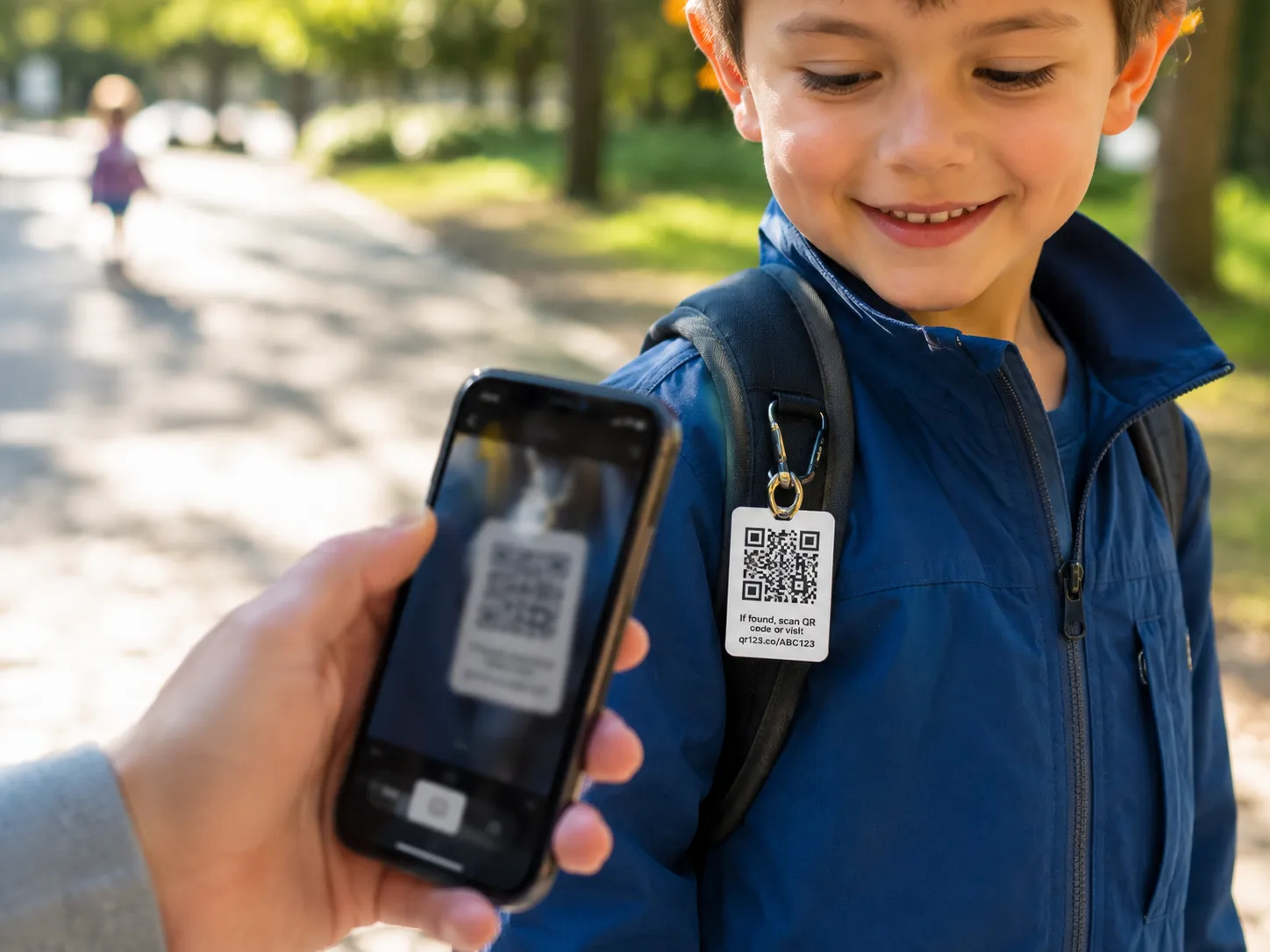
Backpack tag for school. Print the QR code on a luggage tag. Loop it through the zipper pull. If your communicator can't speak and a teacher needs to know how they communicate, they scan the tag and the board opens on the teacher's phone.
Fridge magnet for grandparents. Print the MySpeak link as a magnet. Grandparents have it whenever they visit, no need to remember anything.
iPad case sticker. A QR on the back of the iPad means anyone who borrows the device — sibling, sub teacher, babysitter — can pull up the right boards without your help.
School/SLP handoff. Email the MySpeak link to the SLP and the classroom teacher. Same boards as you use at home, no setup on their end.
What to expect
- Sharing is instant. The moment you copy the link, it works for whoever you send it to.
- Updates propagate automatically. When you add or edit a board, everyone using the MySpeak link sees the new version next time they load the page.
- Recipients don't need to install anything. Whoever you share the link with can open it in any web browser — iPhone, Android, laptop, school Chromebook — no account, no app download. (If you want a dedicated app icon on your own iPad, the SpeakAnyWay iOS app is on the App Store.)
- The link is fully public. Anyone who has the link can use the boards — there's no sign-in gate or allow-list. Share it like you'd share a Google Doc set to "anyone with the link." If a link goes further than you meant, you can shut it off: Get a new link on a MySpeak page, or unpublish a board.
Common questions
- Can I take the link offline if I share it by mistake? Yes. For a MySpeak page, open its tab and tap Get a new link — the old link stops working right away, and printed QR codes keep working. For a single board, open its Settings, turn off Publish this board, and save; its link stops opening for anyone else.
- Does the recipient need to make an account? No. They just open the link.
- Can multiple people use the same link at the same time? Yes. Each person's session is independent — taps don't show up on anyone else's screen.
- Will using the public link show up in my activity logs? Taps on a shared link don't show in your communicator's activity. The exception: when someone opens Emergency info on a MySpeak page, we email you so you know it was viewed.
- Can I see who's using the shared link? Not by name — board and page visits are anonymous. If someone opens the Emergency info on a MySpeak page, you'll get an email with the time and rough location.