How your communicator uses it
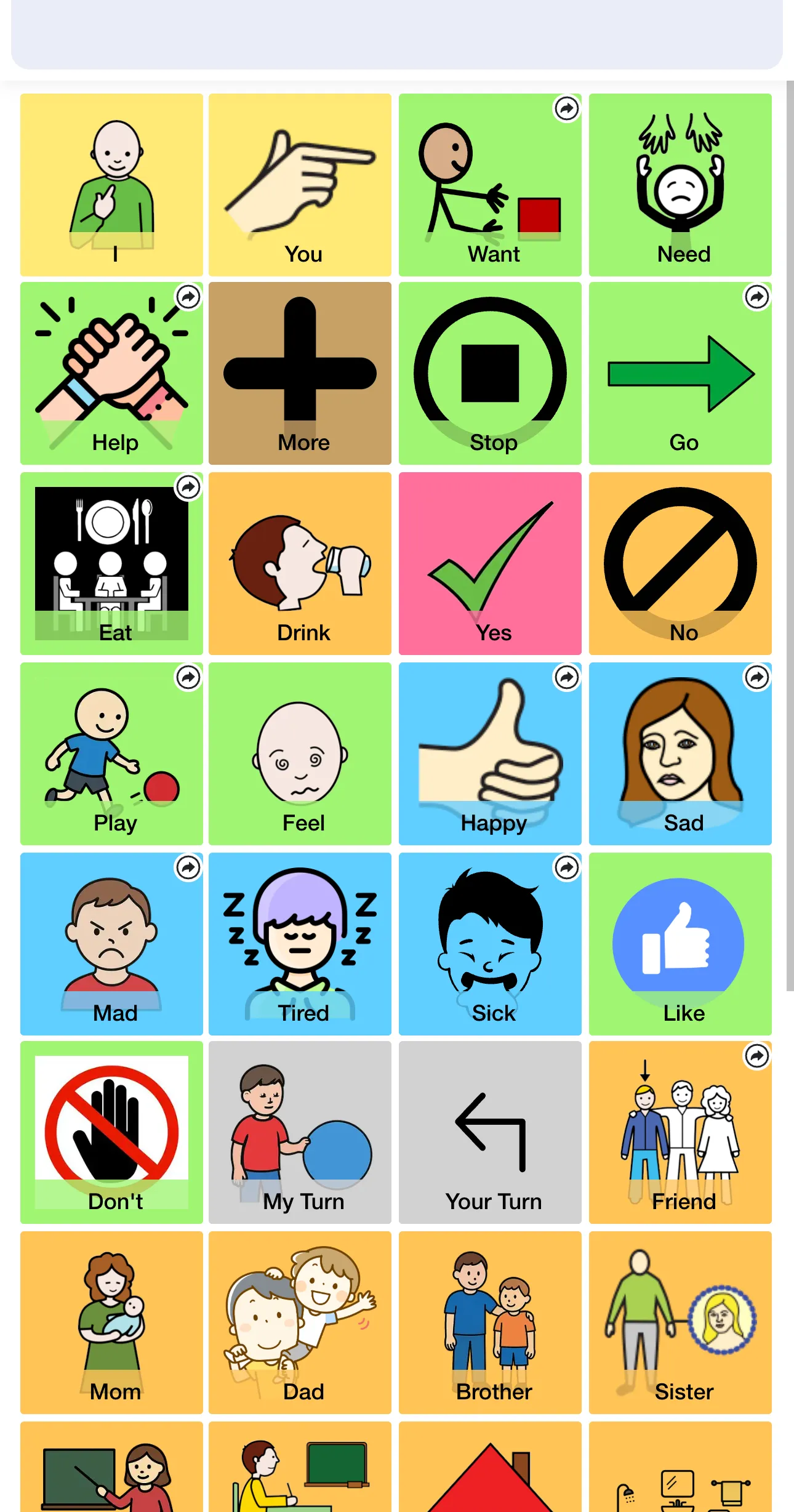
Once a board is set up, your communicator uses it by tapping cells. Each tap speaks the word out loud. That's the whole thing.
This article covers what the experience looks like from their side, how they sign in (or don't), and how to make the first few sessions go well.
What you'll need
- A communicator that's been set up (Set up your first communicator)
- At least one board assigned to them
- A device — phone, tablet, computer, anything with a web browser. Volume turned up.
The basics: tap to speak
- Open the board on whatever device they'll use.
- Tap any cell.
- The voice you picked speaks that word out loud.
- Tap another cell to say another word.
That's it. There's no recording, no holding the button, no special mode. One tap = one word spoken.
For longer messages, your communicator taps cells in sequence. Some boards have a sentence bar at the top that builds the sentence as they tap — they tap send (or the speaker icon) to read the whole sentence out loud.
How they get to their board
There are three common ways:
A. They use your device, signed in as you
Easiest for kids who don't read passwords yet, or for the first few weeks while you're learning together. You're signed into your account; you open the board for them; they tap.
Works fine. No setup beyond what you've already done.
B. They have their own sign-in
When you set them up as a full communicator with a password, they get their own login at app.speakanyway.com. They (or you) type their username and password, and they land on their own dashboard with just their boards.
Good for kids who can read, for shared family devices, or for SLPs who want to keep client accounts separate.
C. They use a MySpeak link (no sign-in)
If you created a MySpeak page for them, anyone with the link can open the board on any device — no account, no password. Open the link in a browser, the board appears, tap cells.
Best for sharing with grandparents, school, respite caregivers, or anyone who shouldn't have to remember a password. See Share a board or page.
Making the first few sessions go well
A few things that help, especially early on:
- Sit next to them, not across. AAC is communication, not testing. Side-by-side feels collaborative.
- Model on the board. Tap cells yourself while you talk. "I want juice." (tap juice) This is called aided language input and it's the single biggest predictor of AAC success.
- Don't quiz. "What's this? What does this say?" turns the board into a test. Just use it together.
- Wait. After they tap a cell, wait. Don't immediately fill the silence. They might tap more.
- Honor every tap. If they tap "juice" when you offered milk, give them juice if you can. The board only works if pressing it makes things happen.
- Start with what they care about. A board of foods they like beats a board of generic vocabulary.
What to expect
- The first session is usually exploratory. They might tap every cell to hear what each one says. That's the right behavior — let them.
- Tapping cells repeatedly is normal. Some communicators tap the same cell over and over for a few days. They're learning what it does. Don't redirect.
- Quiet days happen. Some days they'll communicate a lot with the board. Some days nothing. AAC use isn't linear.
- You'll think of more words after the first day. This is normal — edit the board, add the missing words. See Edit a board.
- Volume matters more than you'd think. Crank it up. Communicators need to hear themselves to know the cell worked.
Common questions
- My communicator isn't tapping anything. Sit with them, model on the board yourself for a few minutes, then leave it open and nearby. Don't pressure. AAC adoption often takes weeks, not minutes.
- They keep tapping random cells. Random tapping is exploration. It's good. Don't try to stop it — just keep modeling intentional tapping yourself.
- They tap the same cell 20 times in a row. Same answer: exploration. Or they really, really want that thing. Honor it.
- The voice doesn't sound right. You can change the speaking voice from the communicator's edit page. See Pick a voice.
- They tapped a cell but no sound came out. Check device volume, check that the device isn't on silent or muted, and try refreshing the page. If it's still silent, see Pick a voice or email hello@speakanyway.com.
- Can they use it offline? Yes — with a one-time download while you're still online, on every plan. Sign in as the communicator, tap their photo at the top of their dashboard, and choose Download for offline. Their boards, images, and recorded audio get saved to the device, so tap-to-speak keeps working with no connection — on the bus, in a waiting room, anywhere. Re-run it (Update offline content) after you change their boards. Note this works from their own sign-in (option B above); a MySpeak link still needs internet. The download stays on the device until someone signs out there — switching to your own account from their dashboard counts — so after signing them back in, download again before you head out. Boards opened while online are also kept as you go, but only the download covers every board and every recorded voice.