Build a board from scratch
The Board Builder makes a whole matched set in one go. The New board page is for when you want one board and full control over it — name, who it's for, age range, grid size, voice, and your own words. You can let AI fill it in, type the words yourself, or start blank. Here's the whole flow.
What you'll need
- A SpeakAnyWay account, signed in (free works, though free accounts have a board limit — see Plans and slot limits)
- A topic or a list of words you want on the board — or neither, if you'd rather start blank
- A couple of minutes
Open the New board page
- From your dashboard, go to New board (the page lives at app.speakanyway.com/boards/new).
- You'll see four starting points: Build a board, Import OBF / OBZ, Import a screenshot, and Build from a menu.
- Build a board is selected by default. That's the one this article covers — naming a board and filling it yourself or with AI, no import or generator needed.
The other three tiles are for bringing in a board you already have (OBF/OBZ file), turning a photo of a board into a real one, or turning a restaurant menu into a board. This article stays on Build a board.

Fill in the basics
The basics card is the only required part.
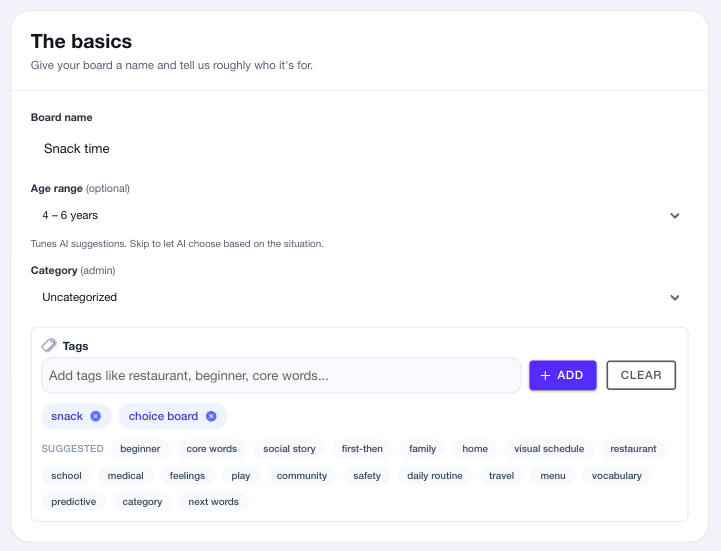
- Board name — the one thing you have to fill in. Name it for what it's for: Morning routine, Snack choices, Feelings check-in.
- Who is this board for? (optional) — pick a communicator, if you have one set up. Choosing someone uses their saved age band, so the age range below switches off; change it on their profile if it's wrong.
- Age range (optional) — choose 2–3, 4–6, 7–10, 11–14, 15+ years, or leave it on Any age. This tunes the words we suggest. Skip it and we pick based on the situation you describe.
Tags aren't on this page — you can tag a board later from its edit page.
That's enough to create a board. Everything below is about what goes on it.
Choose what goes on the board
The What goes on the board card — labeled Help me fill it in — is where you decide how the cells get filled. Pick one of three tabs along the top, and switch between them anytime before you create the board.
Not sure what to build at all? The Need an idea? card sits above the basics — tap a suggestion and it fills in both the board name and the situation for you.
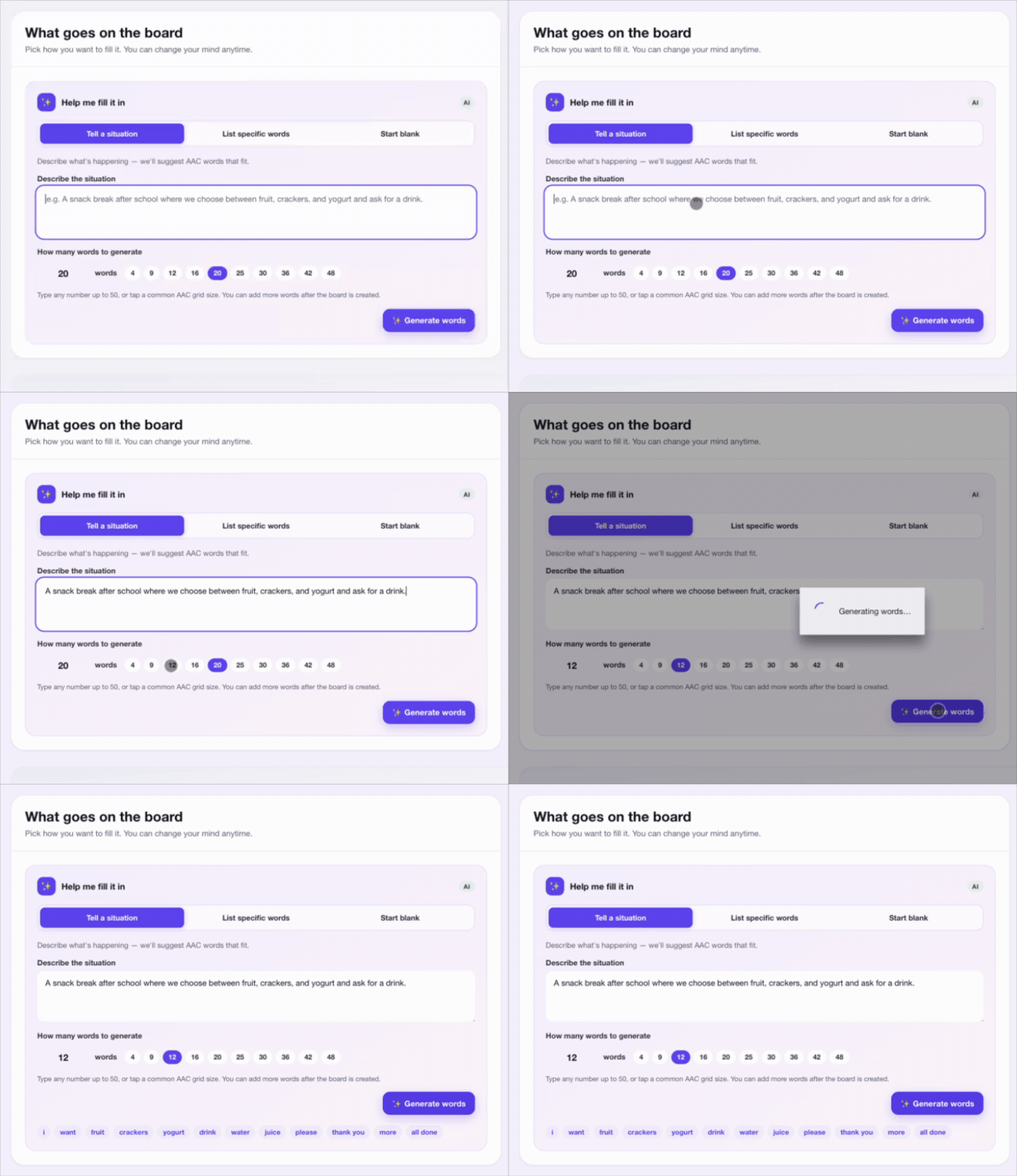
Tell a situation. Describe what's happening in a sentence or two — "choosing what to do at the park" or "a snack break after school." AI reads it and suggests AAC words that fit. Under How many words to generate, pick a count (anything from 1 to 50; the chips cover common grid sizes), then tap Generate words. The words appear as chips so you can see what you're getting — to change them, switch to List specific words and edit the list directly.
List specific words. Type the exact words you want, separated by commas or new lines — swing, slide, snack, home, more. They go on the board as-is — no AI, no credits. Want more? Pick a number under How many words to generate and tap Generate words: AI adds that many new words on top of yours, skipping anything you already typed.
Start blank. Create the board with just the name, grid, and voice you picked, and add words by hand later. No AI, no typing — handy when you'd rather build it cell by cell yourself.
Tip: A specific situation beats a vague one. "Snacks at Grandma's after school" gives sharper word suggestions than "food." The more real-life detail, the closer the board lands.
Set the grid and voice (optional)
On the right side (or below, on a phone) you'll find two small cards:
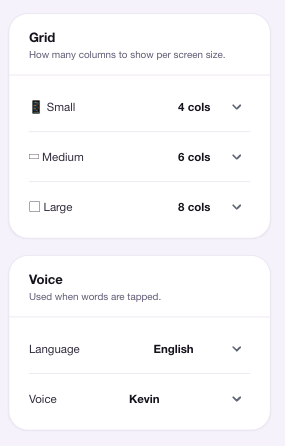
- Grid — how many columns show on small, medium, and large screens. More columns means smaller cells and more words per screen; fewer columns means bigger, easier targets. You can change this any time later.
- Voice — the language and the speaking voice for this board. Leave it and the board uses your account default. See Pick a voice for the full list.
Create the board
When the basics are filled in, tap Create board in the bar at the bottom of the screen. (The Clear button next to it resets the form if you want to start over.)

SpeakAnyWay builds the board and shows you a status screen while it works. You can leave the page — it keeps building. When it's ready, that screen gives you Open board, Edit board, and Download PDF. For more ways to print, see Print a board. Head into the editor to fix labels, swap images, and rearrange cells: see Edit a board.
What to expect
- The board name is the only hard requirement. If you tap Create without one, the page scrolls back up and asks for it. Everything else is optional.
- Generated boards are a starting point. AI gets you most of the way; expect to swap a few images and tweak a few words once you see how your communicator reacts.
- "Generate words" needs something to work from. It uses your situation text, or the board name if the situation is empty. If both are blank, it'll ask you for a topic first.
- Nothing here is permanent. Grid size, voice, words, images — all editable after the board exists. Don't agonize over getting it perfect up front.
Common questions
- How is this different from the Board Builder? The Board Builder is the guided wizard — you pick a communicator, how much vocabulary, and what they're into, and it builds a whole matched set of linked boards, mostly from ready-made starter sets. Build a board makes one board and hands you the dials: name, age range, grid, voice, your own words, or a blank start. Both need you signed in. Word suggestions on Build a board use AI credits.
- Do I have to use AI at all? No. On the List specific words tab, type your words and create the board without tapping Generate. Or use the Start blank tab and add cells by hand.
- What's the difference between "Tell a situation" and "List specific words"? A situation is a sentence about what the board is for — AI reads it and picks fitting words. The words on List specific words are the exact words you want placed, no interpretation. Pick whichever fits.
- Can I change the grid size after creating? Yes. It's editable on the board later, so the choice here isn't final.
- What about importing a board I already have? That's a different tile — Import OBF / OBZ for a file, or Import a screenshot to turn a photo of a board into a real one. Both sit next to Build a board on the same page.